There is a quiet revolution happening on personal computers right now. Many of developers, researchers, and curious hobbyists started running powerful language models entirely on their own hardware, with zero internet connection required, no API bills, and no company logging their prompts.
LM Studio is the tool that made this accessible to people who would never dream of configuring a Python environment from scratch. If you have ever wanted to run Llama 4, DeepSeek-R1, or Qwen3 locally without babysitting a terminal, this guide is exactly what you need.

What Is LM Studio and Why Should You Use It?
LM Studio is a desktop application for Windows, macOS, and Linux that lets you download, manage, and chat with open-weight language models directly on your machine. It provides a polished graphical interface sitting on top of llama.cpp, the C++ inference engine that made running large models on consumer hardware realistic in the first place.
The reason people choose it over raw llama.cpp or even popular alternatives is simple. You do not write a single terminal command to get a model running. You search for a model inside the app, click download, and start chatting. For someone who wants to run a 7B parameter Mistral model on a laptop during a flight, that kind of friction reduction is the entire value proposition.
Beyond ease of use, the privacy angle is real and increasingly meaningful. When you query Claude or GPT-4 through their APIs, your prompts travel to remote servers. For legal contracts, proprietary code, patient intake forms, or anything sensitive, that data transfer creates genuine compliance risk. With LM Studio, nothing leaves your machine. The model runs in RAM and VRAM. The conversation lives in your app. That is the end of the data story.
LM Studio also ships with a local server that speaks the OpenAI API format. This means any tool or library built for OpenAI — LangChain, Open WebUI, VS Code extensions, Claude Code — can be pointed at localhost:1234 and work with your local model without knowing or caring that the backend changed.
LM Studio vs Ollama — Which Local AI Tool Is Actually Better?
This comparison comes up constantly in developer communities, and the answer is genuinely context-dependent rather than a clear winner situation.
Ollama was built for the terminal. You install it, run ollama run llama3, and you are chatting within thirty seconds. There is no GUI, no model browser, and no settings panel. That is a feature, not a bug, for developers who live in the command line and want the smallest possible abstraction layer between them and the model. Ollama also has excellent integration with Docker and works beautifully in headless server environments.
LM Studio was built for the desktop. It gives you a visual model browser that pulls directly from Hugging Face, side-by-side model comparison, a full chat interface with conversation history, a Developer tab for server management, and per-model configuration controls for context length, temperature, repeat penalty, and GPU layer offloading. When someone is exploring which quantization level works best for their specific GPU, or trying to understand why a model is hallucinating with certain prompts, that visual feedback loop is enormously useful.
The practical split most people land on is this. Ollama handles automated scripts, CI environments, and anything where you want to call a model programmatically from a server. LM Studio handles model discovery, experimentation, document analysis, and developer workflows where you benefit from a visual interface. Running both on the same machine is completely normal and creates no conflicts.
One notable recent shift is that LM Studio is now free for commercial and work use. Previously there were licensing ambiguities around professional use. That distinction is gone. You can use it in a company context, run it in a professional workflow, and build internal tooling around it without any licensing friction.
How to Set Up and Use LM Studio — Step by Step
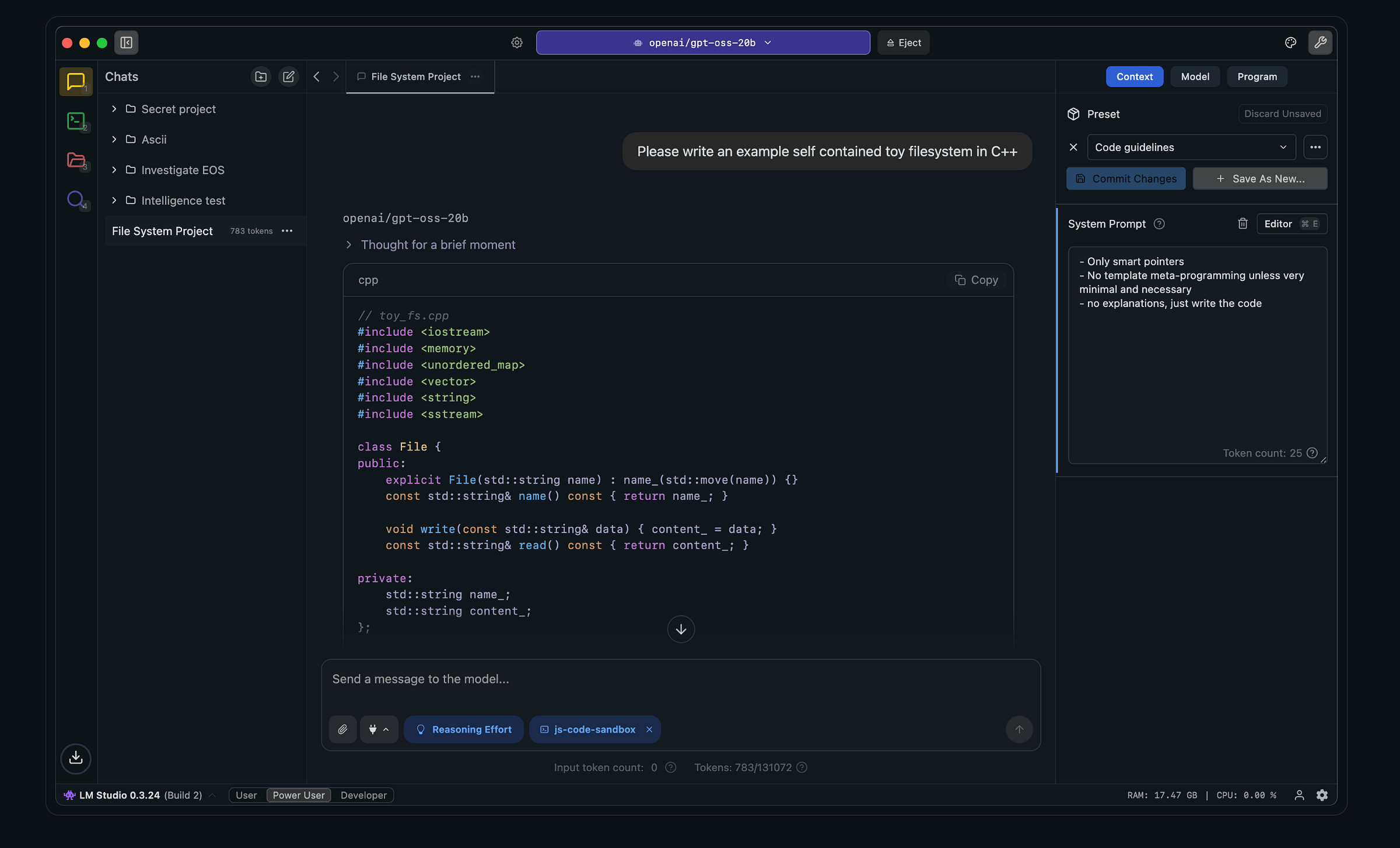
1. Downloading and Installing the App
Go to lmstudio.ai and download the installer for your operating system. On Windows you get an .exe, on macOS an .dmg, and on Linux an .AppImage. The installation is conventional and requires no special configuration. As of version 0.4.x, the interface received a significant redesign with a cleaner sidebar navigation and a dedicated Developer tab that did not exist in earlier versions. If you see screenshots online that look noticeably different from what you install, they are probably from a older tutorials.
After launching, the app will prompt you to select a hardware acceleration backend. On Apple Silicon Macs it will default to Metal. On Windows and Linux machines with NVIDIA cards it will offer CUDA. On AMD hardware it uses Vulkan or ROCm depending on your setup. If you are running on CPU only, LM Studio will still work but inference will be considerably slower, especially on models above 3B parameters.
2. Finding and Downloading Models — Hugging Face and GGUF Explained
The model discovery experience is one of LM Studio’s strongest features. The search bar in the app connects to Hugging Face and filters specifically for GGUF format files, which is the quantized model format that llama.cpp consumes. You do not need a Hugging Face account to download most models.
GGUF is a binary file format that packs the model weights into a single file with metadata baked in. When you see a model listed as Q4_K_M or Q8_0, those suffixes describe the quantization level. Quantization reduces the precision of the model weights to shrink the file size and memory requirement. A Q4_K_M file uses approximately 4 bits per weight with a mixed-precision approach for the most sensitive layers. A Q8_0 file uses 8 bits and is closer to the original float16 quality. The tradeoff is always between output quality and how much VRAM or RAM the model demands.
When you find a model you want, LM Studio shows you multiple GGUF variants sorted by file size. Clicking the download button pulls the file to a local directory it manages. You can see download progress, manage your library, and delete models you are no longer using, all within the same interface.
3. Chatting with Documents — Offline RAG in Practice
LM Studio supports document attachment directly in the chat interface. You can drag a PDF, a text file, or a markdown document into the chat window, and the model will read and reason over that content without any of it leaving your computer. This is a simplified implementation of Retrieval Augmented Generation, commonly called RAG.
For basic use cases like summarizing a legal agreement, reviewing a research paper, or asking questions about an internal company document, this works remarkably well. The model chunks the document, embeds the chunks using a local embedding model, and retrieves relevant sections before generating its response. For more complex multi-document RAG pipelines with precise retrieval, you would want to build something more custom using the local server API. But for most day-to-day document work, the built-in experience handles the job without any additional tooling.
Best Models to Run on LM Studio in 2026
The open-weight model landscape has matured dramatically. What was genuinely impressive at 70 billion parameters in 2024 is now achievable at 8 billion parameters with the right architecture and training data. Here is where different model families shine based on real use.
Best for Coding
Qwen3-Coder from Alibaba has become the go-to recommendation for coding tasks on consumer hardware. Its architecture handles long context windows efficiently, and its performance on HumanEval and SWE-bench benchmarks is competitive with models several times its size. For people running on 16GB of RAM or VRAM, the 8B Q4_K_M variant fits comfortably and generates production-quality code completions.
If you have access to higher VRAM, the gpt-oss-20b model that leaked from OpenAI's open-source efforts has also shown strong coding results and runs well on LM Studio at 4-bit quantization on a 24GB card like the RTX 3090.
Best for General Chat and Reasoning
Llama 4 from Meta raised the bar for general conversation and instruction following. The Scout and Maverick variants offer different size-to-quality tradeoffs, with Scout being the practical choice for most consumer setups. For people on Apple Silicon with 32GB or more of unified memory, running the larger Maverick variant in Q4 quantization delivers results that genuinely rival hosted API models for most tasks.
Gemma 3 from Google is worth calling out specifically for its multilingual capability and its unusually strong performance at smaller sizes. The 4B and 9B variants perform above their weight class on reading comprehension and summarization tasks, and their smaller footprint makes them excellent for older hardware.
Best for Deep Reasoning
DeepSeek-R1 distillations remain among the best reasoning models you can run locally. The original R1 at 671 billion parameters is impractical for most consumer setups, but the distilled versions at 8B and 14B parameters inherit a meaningful portion of R1’s chain-of-thought reasoning capability. For math, logic puzzles, multi-step problem solving, and code debugging that requires working through a problem systematically, the 14B distill running at Q4 quantization on a 16GB card is genuinely surprising.
VRAM Requirements Cheat Sheet
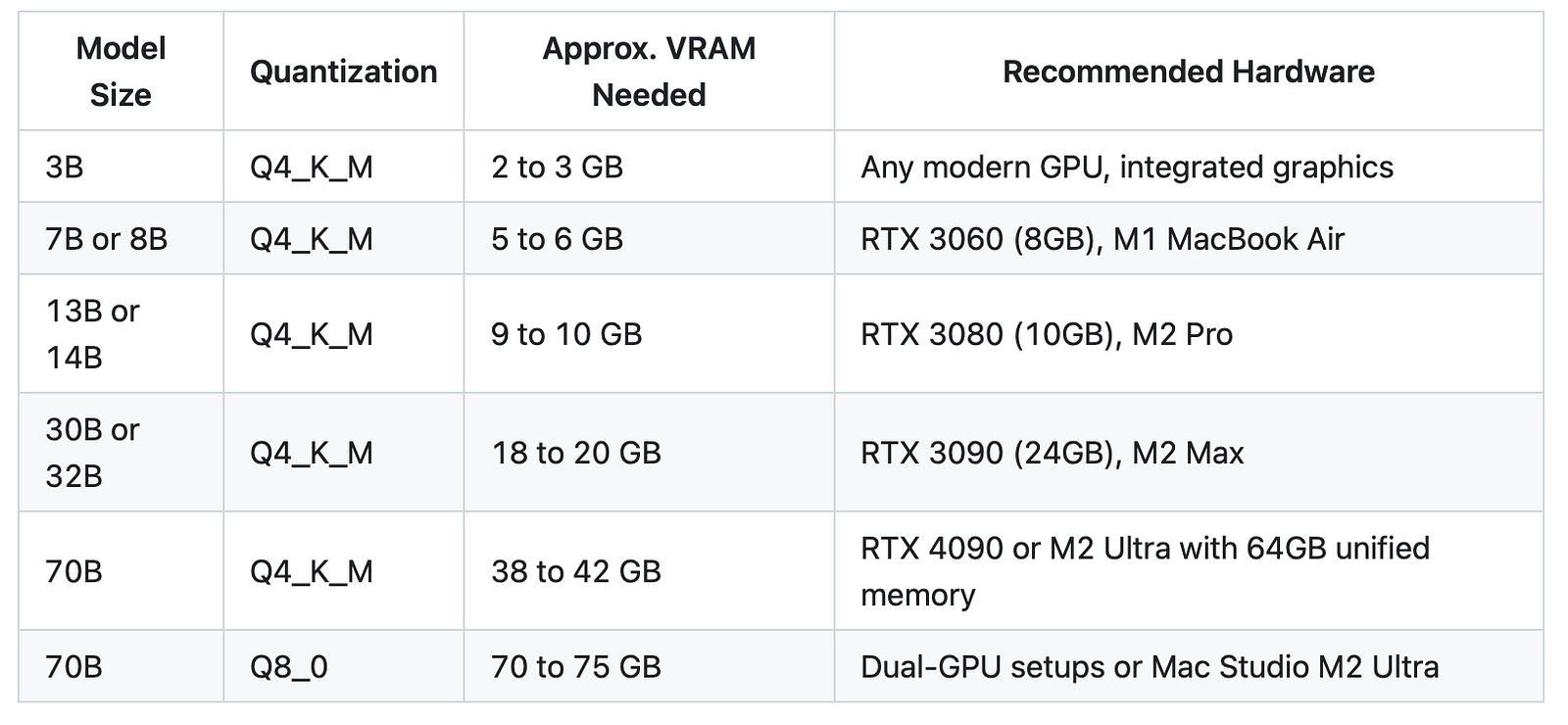
These figures assume the model is fully loaded into GPU memory with no CPU offloading. If you have less VRAM than listed, LM Studio can split the model across GPU and RAM using layer offloading, which works but reduces inference speed noticeably.
Advanced LM Studio Features for Developers
Setting Up the Local Server with OpenAI API Compatibility
The Developer tab in LM Studio version 0.4.x is where the tool transforms from a chat application into infrastructure. You load a model, navigate to the Developer tab, and click the start button to launch a local HTTP server. By default it binds to http://localhost:1234 and exposes the same endpoints that OpenAI's API uses, specifically /v1/chat/completions, /v1/completions, and /v1/embeddings.
Any application that accepts a custom base URL for OpenAI calls can now use your local model as its backend. This includes LangChain, LlamaIndex, Open WebUI, and most AI-enabled VS Code extensions. The pattern is always the same. Set the base URL to http://localhost:1234/v1 and use any string as the API key since the local server does not authenticate. The server accepts the request, runs inference on your GPU, and returns a response in exactly the format the calling application expects.
One configuration detail worth understanding is CORS. If you are calling the local server from a web application running in a browser, you need to enable CORS in LM Studio’s server settings. This is a toggle in the Developer tab. Without it, browser-based applications will be blocked by the same-origin policy and you will see network errors that look like authentication failures but are actually CORS rejections.
Using Speculative Decoding for Faster Generation
Speculative decoding is one of the most practically useful performance features LM Studio has added in recent releases. The idea is architecturally clever. A smaller, faster “draft” model generates several token candidates ahead of time. The larger target model then verifies those candidates in parallel rather than generating each token sequentially. When the draft model guesses correctly, you get those tokens essentially for free. When it guesses wrong, you fall back to normal generation.
The result in practice is a 1.5x to 3x speedup in tokens per second on many tasks, particularly for conversational prompts and code generation where the model output is somewhat predictable. To enable it in LM Studio, you load your main model as usual and then select a draft model in the settings panel. The draft model should be the same model family but a smaller variant. For example, pairing a 70B Llama model with an 8B Llama draft model gives good acceptance rates because they share similar vocabulary patterns and were trained on similar data distributions.
The speedup degrades on highly creative tasks where the large model’s output is less predictable from the smaller model’s perspective. For technical writing, code completion, and factual Q&A, the gains are consistent and meaningful.
Connecting LM Studio to VS Code and Claude Code via MCP
Model Context Protocol, known as MCP, is an open protocol developed by Anthropic that standardizes how AI models communicate with external tools. It defines a structured way for a model to request information from file systems, databases, APIs, and other services, and for those services to return results in a consistent format. The reason this matters for LM Studio users is that several developer tools have built MCP support, and LM Studio’s local server can act as the AI backend for those tools.
VS Code integration is the most common setup. Extensions like Continue.dev support MCP and can be pointed at LM Studio’s local server. This means your entire code editor workflow, tab completion, inline suggestions, chat with codebase, and refactoring assistance, runs on your local GPU using whatever model you have loaded. Your code never leaves the editor. For proprietary codebases where sending source to external APIs is a policy violation, this setup resolves that concern entirely.
Claude Code with LM Studio is a configuration that has grown significantly in popularity in developer communities. Claude Code is Anthropic’s CLI coding agent. By setting the ANTHROPIC_BASE_URL environment variable to point at a local LM Studio MCP server endpoint, Claude Code's interface can route requests to your local model rather than the Anthropic API. The practical use case is running the agentic scaffolding of Claude Code, the file editing, terminal execution, and task planning, while using a local model for inference. This lets you experiment with local model performance in an agentic context without API costs, which is particularly useful for testing and development.
To configure this in LM Studio, navigate to the Developer tab, enable MCP server mode, and note the endpoint URL it provides. Then in your environment configuration for the tool you want to connect, replace the upstream API endpoint with the LM Studio MCP endpoint. The exact environment variable names differ by tool, but the pattern of substituting the base URL is consistent across Claude Code, Cursor, and Continue.
Frequently Asked Questions
Is LM Studio completely free?
Yes. LM Studio is free to download, install, and use. As of its recent licensing update, it is also free for commercial and work use. There are no subscription tiers, no token limits, and no usage caps. The models it runs are also free to use in the sense that they are open-weight releases from research labs and companies like Meta, Google, Alibaba, and Mistral. Some of those models have their own licensing terms that vary by commercial use case, so it is worth reading the specific model card on Hugging Face before deploying one in a production commercial product.
Is LM Studio open source?
No. The LM Studio desktop GUI is closed source. The underlying inference engine it uses, llama.cpp, is open source under the MIT license. The lms command line interface that ships with LM Studio is also open source. But the desktop application itself, the code that renders the UI, manages the model library, and runs the server, is proprietary software maintained by LM Studio's developers. This is a distinction worth understanding if open-source licensing is a requirement for your use case.
What are the hardware and VRAM requirements for LM Studio?
The short answer is that it depends almost entirely on which model you want to run. LM Studio itself is lightweight and will install on any machine made in the last decade. The computational demand comes from the model. A 4-bit quantized 7B or 8B model requires roughly 5 to 6 GB of VRAM or RAM to run with decent speed. An RTX 3060 8GB card, an RTX 3070, or an Apple M1 MacBook Air with 8 to 16GB of unified memory all handle these models comfortably. For larger models in the 30B to 70B range, you need a high-end card like the RTX 3090 or 4090, or an Apple M2 Max or M2 Ultra with 64 to 96GB of unified memory. CPU-only inference works but is significantly slower, sometimes 5 to 10 tokens per second versus 50 or more tokens per second on a capable GPU.
How do I fix the “Local Server Not Responding” error?
This error most often has one of three causes. First, check that you have actually started the server. In LM Studio version 0.4.x, the server does not start automatically when you load a model. You need to go to the Developer tab and explicitly click the start button. Second, confirm the port. LM Studio defaults to port 1234, but if another application is using that port on your system, the server either fails silently or binds to a different port. The Developer tab shows you the active port. Third, if you are calling the server from a browser-based application, verify that CORS is enabled in the server settings. The default behavior is CORS disabled, which will cause browser requests to fail with network errors that look superficially similar to server-down errors.
Can LM Studio read my local PDFs and documents?
Yes. You can drag files directly into the chat window in LM Studio and the model will process them locally. This works for PDFs, text files, and markdown documents. The entire process happens on your machine using a local embedding model to index the document content. Nothing is uploaded or transmitted. For basic document Q&A, this built-in workflow is fast and convenient. For more demanding use cases involving large document collections, precise citation retrieval, or complex multi-step queries across dozens of files, you would get better results building a dedicated RAG pipeline using LM Studio’s local server API and a framework like LlamaIndex.
Conclusion and Next Steps
LM Studio has lowered the barrier to local AI so significantly that the question is no longer whether you can run models locally, it is which model fits your hardware and what you want to build with it. The combination of a polished GUI for exploration, a production-capable OpenAI-compatible server for integration, MCP support for tool use, and document RAG for private file analysis makes it one of the most complete single-application solutions in the local AI space.
If you are just getting started, download LM Studio, grab a 7B or 8B model in Q4_K_M quantization based on the VRAM table above, and spend thirty minutes chatting with it before configuring anything. Understanding what the model is good at in a simple chat interface builds the intuition you need to make smarter decisions about local server setup, prompt engineering, and more advanced configurations like speculative decoding.
If you are a developer, the MCP server integration and VS Code workflow are the highest-leverage things to explore next. Running a full agentic coding session with your local GPU as the backend, on a codebase that never leaves your filesystem, is the kind of workflow that fundamentally changes how you think about AI-assisted development. Start with a smaller model, establish that the pipeline works end to end, and then scale up to a larger quantization once the integration is stable.
The pace of open-weight model releases in 2025 and 2026 has made this a genuinely exciting time to be building local AI workflows.
The gap between frontier API models and local open-weight models is narrowing every few months. LM Studio sits at the center of that shift, and understanding it well is increasingly a useful skill.