Running ollama run llama3 feels magical at first. You type a question, and a 7-billion parameter model responds from your own hardware. No API keys. No privacy concerns. Just you and your local AI.
But three weeks later, your setup looks different. You have five versions of Llama scattered across your drive. DeepSeek sits dormant, eating 8GB of precious SSD space. Your GPU fans spin wildly during video calls because something is still loaded in VRAM. When you try to run a new model, the system crawls.
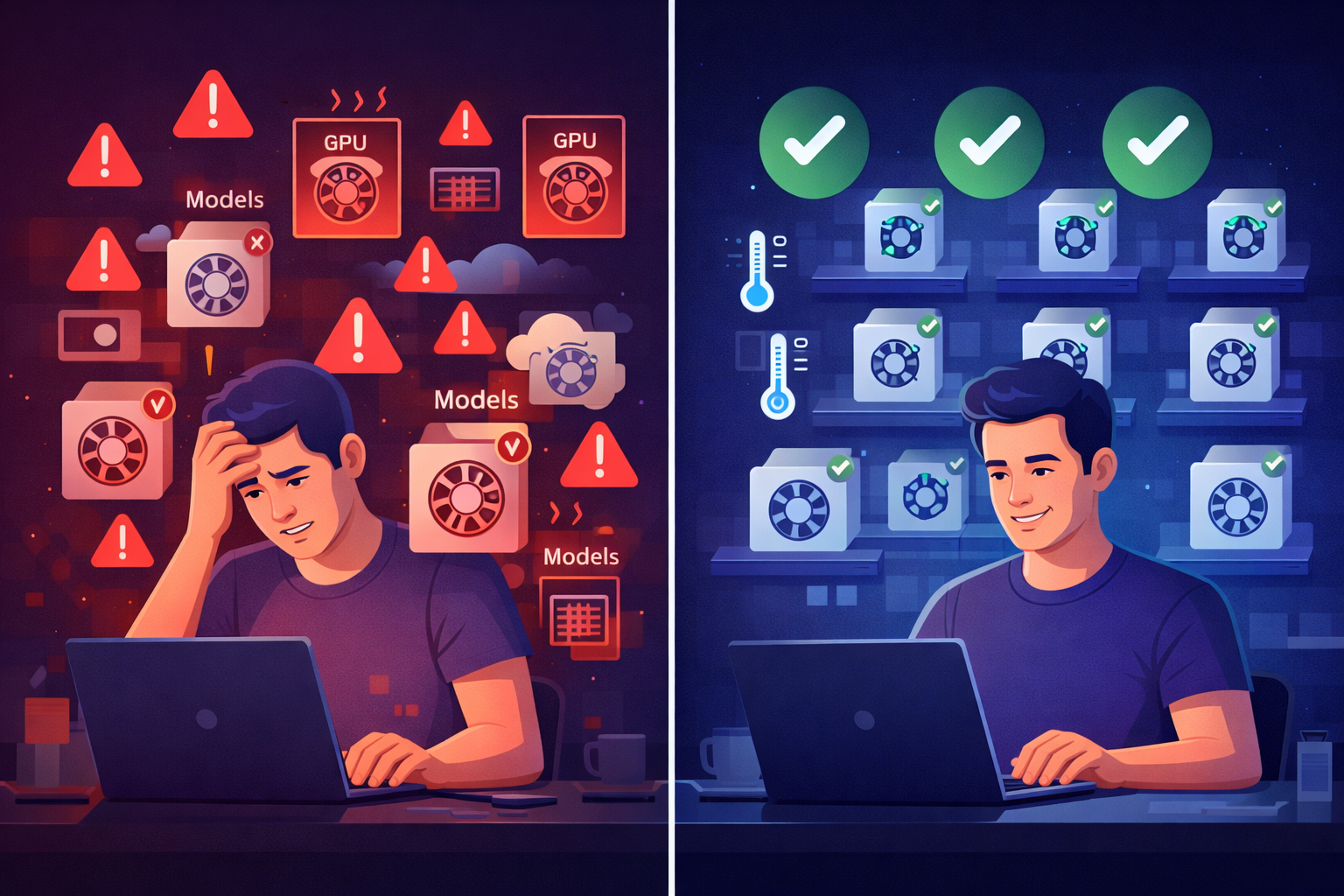
You are no longer a curious beginner. You are someone managing a multi-model environment, and the basic commands are no longer enough.
Today, we close that gap. These seven commands transform your Ollama installation from a toy into a professional development environment. You will learn to inspect model architectures, customize AI personalities, monitor memory consumption in real time, and reclaim resources without restarting your entire system.
Running models is just the start. Managing them is where the real work begins.
Understanding Your Inventory
Most people believe they know which models are installed. They ran the download commands weeks ago and assume everything is sitting idle, waiting to be summoned.
The reality is messier.
Models exist in two states. They occupy space on your disk, yes, but some also lurk in your GPU memory, consuming VRAM even when you think they are dormant. The difference between these two states matters enormously for system performance.
The command ollama list shows you every model that exists on your physical storage. Think of it as reading a warehouse manifest. You see the names, the sizes, and the modification dates. This is your disk inventory.
But ollama ps reveals something entirely different. It shows which models are currently active in memory. These are the ones eating your VRAM right now, the ones that will slow down your browser or your video rendering software.
The output of ollama ps includes a column labeled PROCESSOR. Pay attention to this field. If you see "100% GPU" next to a model name, that model is running entirely on your graphics card. Fast, efficient, exactly what you want. But if you see something like "GPU/CPU" or a percentage split, trouble is brewing. The model is too large for your VRAM, so the system is shuffling data between the GPU and your slower system RAM. Every inference becomes a bottleneck.
When your Web UI feels sluggish or your terminal responses lag, run ollama ps first. The problem is usually visible immediately. A model you ran three hours ago is still sitting there, hogging 6GB of VRAM, waiting for a command that will never come.
This single diagnostic step saves hours of frustration.
Inspecting Model DNA
You download a model named “llama3–8b-instruct”. The name tells you something, but not everything. Is this the 4-bit quantized version or the full 16-bit precision model? What is the context window size? Does it have any default system instructions baked in?
These details are not cosmetic. They determine whether the model will fit in your VRAM, how fast it will respond, and whether it will remember the earlier parts of a long conversation.
The command ollama show <model_name> opens the hood. It displays the model template, the default parameters, and the configuration that governs every interaction.
Try this right now. Run ollama show llama3 --modelfile. The output looks like a recipe. You see the base model it was built from, the temperature setting, the context window, and any system prompts that were embedded during creation.
Now add the --parameters flag. The information expands. You see the quantization method, the number of GPU layers, and the memory requirements. If you have multiple versions of the same model, this command explains why one runs smoothly while another stutters.
This is not trivia. When you are troubleshooting performance issues or comparing model behavior, this information becomes essential. Someone tells you to “use the 4-bit version for speed,” but you need to verify which version you actually have. The answer is here.
The more models you collect, the more this command saves you from guessing.
Building Custom Personalities
Every model arrives with default behavior. Llama3 is helpful but generic. DeepSeek is precise but verbose. Mistral is fast but occasionally overconfident. These defaults work for general use, but they fall apart when you need something specific.
What if you want a model that only speaks like a senior Linux system administrator? Or one that refuses to explain its reasoning and just outputs JSON-formatted data? Or one with an extended context window for analyzing long documents?
You do not need to retrain anything. You need a Modelfile.
A Modelfile is to Ollama what a Dockerfile is to container environments. It defines the base model, applies custom parameters, and injects system-level instructions that persist across every session. Once you create a custom model this way, you never have to repeat the same prompt engineering again.
Here is a working example. Create a file named DeveloperLlama.Modelfile and paste this content inside:
FROM llama3
PARAMETER temperature 0.2
PARAMETER num_ctx 8192
SYSTEM "You are an expert software architect with 15 years of experience in distributed systems. Provide concise, production-ready solutions. Avoid tutorial-style explanations. Assume the user understands basic programming concepts."
Save the file. Now run this command:
ollama create dev-llama -f DeveloperLlama.ModelfileThe system processes the instructions and registers a new model called dev-llama. This model is not a separate download. It references the same underlying Llama3 weights, but every time you invoke it with ollama run dev-llama, it behaves according to your custom rules.
The temperature of 0.2 makes responses more deterministic and focused. The expanded context window allows it to process longer inputs. The system prompt shapes the personality and output style without requiring you to type those instructions manually each time.
You can stack these. Build a json-llama that always outputs structured data. Create a storyteller-mistral with a higher temperature for creative writing. Make a security-auditor-deepseek that only responds with vulnerability assessments.
Each custom model costs you nothing in disk space because they all point back to the same base weights. You are just wrapping them in different personalities.
This is how professionals use Ollama.
Real-Time Parameter Tuning
Sometimes you do not want to create a whole new model. You just need to adjust something temporarily for the current session.
Ollama includes an interactive menu that most users never discover. While inside an ollama run session, you can type commands that begin with a forward slash. These modify model behavior on the fly without restarting anything.
Type /set parameter num_ctx 8192 during a conversation. The model immediately expands its context window. If you are analyzing a long document and need it to remember earlier sections, this command solves the problem instantly.
Need structured output for a script? Type /set format json. From that moment forward, every response arrives in clean JSON format. No more parsing messy text. No more extracting data from paragraphs. Just key-value pairs ready for your pipeline.
Want to see performance metrics? Type /set verbose. The system starts displaying tokens per second, latency statistics, and memory usage after each response. You can watch how different prompt styles affect inference speed.
These commands do not persist. Once you exit the session, the model returns to its default state. But for experimentation and debugging, this capability is invaluable. You can test different temperature settings, adjust repetition penalties, and observe the results immediately without rebuilding anything.
Most tutorials never mention this. They teach you to edit Modelfiles and recreate models every time you want to test a parameter change. That workflow makes sense for permanent modifications, but for quick tests, the interactive commands are faster.
Reclaiming Your Resources
The problem always arrives the same way. Your system slows down. Applications take longer to launch. The GPU fans run constantly. You open a new terminal and try ollama run mistral, but the response time is abysmal.
You check ollama ps and find the culprit. A model from yesterday is still loaded in VRAM, consuming 7GB of memory, waiting for commands that will never arrive.
The obvious solution is to restart the Ollama service. That works, but it is crude. It dumps every model from memory, forces you to wait for the service to reload, and wastes time.
The better solution is surgical.
Run ollama stop <model_name>. The specified model immediately unloads from memory. Your VRAM is freed. Your GPU fans quiet down. Other applications regain access to that memory without requiring a full system restart.
This command does not delete anything. The model still exists on your disk. You can reload it instantly with ollama runwhenever needed. You are simply telling the system to release its grip on your hardware resources.
For disk space management, the situation is different. Models accumulate. You download mistral-7b, then mistral-7b-instruct, then mistral-7b-openorca, then a fine-tuned version someone shared. Before long, you have 40GB of disk space dedicated to variations of the same architecture.
The command ollama rm <model_name> solves this permanently. It deletes the model from your storage. The space is reclaimed. The clutter is gone.
Be careful here. Deletion is immediate and irreversible. You will need to redownload the model if you change your mind later. But for most users, the trade-off is obvious. A model you have not used in two months is unlikely to become essential tomorrow. The disk space is more valuable.
These two commands give you fine-grained control. You manage memory and storage independently, responding to problems as they arise without the blunt instrument of a full system restart.
The Agentic Future
In early 2026, Ollama introduced a feature that most home lab users have not yet explored. The ollama launch command bridges the gap between your local models and agentic development tools.
Agentic systems are the next evolution of AI usage. Instead of chatting with a model through a terminal, you connect it to coding environments like Claude Code or OpenCode. The AI reads your project files, suggests changes, writes tests, and integrates directly into your development workflow.
Setting this up used to require manual configuration. You edited JSON files, specified API endpoints, and hoped everything aligned correctly. The process was brittle. One typo in a configuration file meant nothing worked.
The ollama launch command automates this entire process. You specify which model to use, and the system handles the connection details automatically. Your local LLM becomes available to agentic tools with a single command.
Why does this matter?
Because local AI is no longer just about answering questions. It is about integrating intelligence into your tools. Your code editor can now suggest refactorings using a model that runs entirely on your hardware. Your terminal can auto-complete complex commands by understanding your project context. Your note-taking application can summarize meeting transcripts without sending data to external servers.
The launch command makes this accessible. No Docker containers. No reverse proxies. No fumbling with environment variables. You run one command, and the bridge is established.
This feature is new enough that the ecosystem is still catching up. But the trajectory is clear. Local AI is moving from conversational toys to embedded intelligence that enhances every part of your workflow.
Efficient Experimentation
Every serious Ollama user eventually reaches this moment. You want to test a theory. What happens if you lower the temperature to 0.1? Or raise the context window to 16,384 tokens? Or change the system prompt slightly?
The naive approach is to download the model again with different settings. That wastes bandwidth and disk space. The smarter approach is to create a new Modelfile and build a custom model. That works, but it takes time.
The fastest approach is almost never discussed.
Run ollama cp llama3 experimental-llama. The command completes instantly. You now have a second model called experimental-llama that points to the same underlying files as the original. No additional disk space consumed. No waiting for downloads. Just an instant clone.
Now you can modify the clone without touching the original. Edit its Modelfile. Change parameters. Test wild configurations. If the experiment fails, delete the clone with ollama rm experimental-llama and start over. Your original model remains untouched.
This technique is particularly valuable when comparing behaviors side by side. You can create three variations of the same model with different temperatures, run them against the same prompt set, and observe which configuration produces better results. All three models share the same weights, so you are testing pure parameter effects without introducing other variables.
The cp command turns experimentation from a laborious process into a rapid iteration cycle. You stop worrying about breaking your working setup because the original remains pristine. You test faster, fail faster, and learn faster.
From User to Orchestrator
Six months ago, you ran your first local AI model. The experience felt revolutionary. A machine learning model responding to your prompts, running on your hardware, owing nothing to cloud providers.
That initial thrill was real, but it was also incomplete. Running a single model is novelty. Managing a fleet of specialized models is capability.
You now understand the difference between disk inventory and memory state. You can inspect model architectures to diagnose performance issues. You build custom personalities that persist across sessions. You tune parameters in real time without restarting anything. You reclaim resources surgically instead of restarting entire services. You connect local models to agentic tools that enhance your development workflow. You clone and experiment without wasting storage.
These are not advanced skills reserved for machine learning engineers. They are practical techniques for anyone serious about local AI. The commands are simple. The concepts are straightforward. What changes is your relationship to the technology.
You are no longer someone who runs models. You are someone who orchestrates them. You allocate resources deliberately. You customize behavior intentionally. You troubleshoot problems systematically.
This is the difference between hobbyist and power user. Not the hardware you own, but how effectively you wield it.
The models are just the beginning. Tomorrow, we build the knowledge base that makes them truly useful.