The old way of running AI locally felt like assembling a spacecraft. You would clone repositories from GitHub, compile C++ code that screamed with errors, wrangle Python virtual environments, hunt down GPU drivers, and after an hour of frustration, you still might not have a working system. The barrier to entry was steep.
The knowledge required was immense. For most people interested in exploring language models, the complexity was prohibitive.
Then Ollama arrived and changed everything.
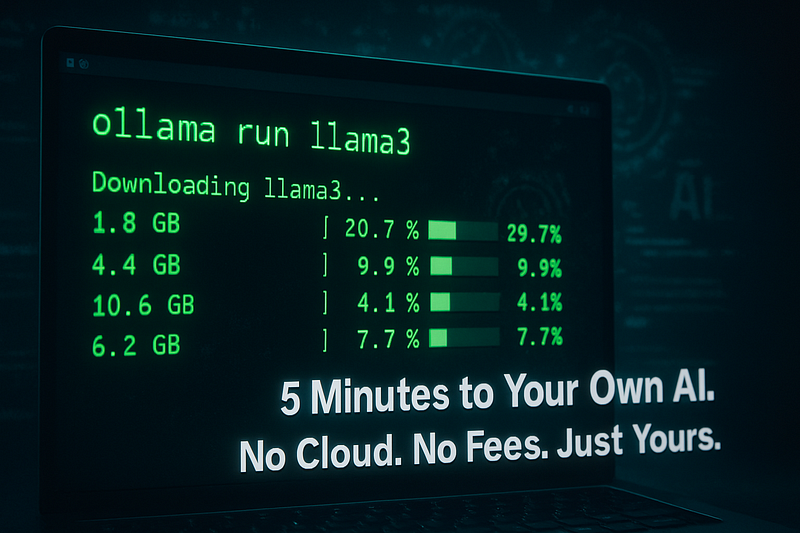
Ollama is to AI models what Docker is to containers. It abstracts away the terrible machinery underneath — quantisation formats, GPU memory management, GGUF file formats — and replaces it with a single, beautifully simple interface. No compilation. No dependencies. No drivers to debug. Just one command and you have a conversational AI running on your own hardware, completely offline, under your full control.
By the end of this guide, you will have Meta’s Llama 3 8B model running on your Linux machine and will be having real conversations with it. If your connection is decent, this takes five minutes. Let’s start
Step 1: The One-Line Installation
Before you start, make sure you have a Linux environment ready. If you are working in the Ubuntu VM from your previous session, you are all set. You need internet access for the download, but once Ollama is installed, everything runs locally.
Open your terminal and run this single command:
curl -fsSL https://ollama.com/install.sh | shThat is it. The installation script detects your Linux architecture (x86–64 or ARM), downloads the Ollama binary, and installs it as a systemd service. Systemd means Ollama runs quietly in the background even after you restart your machine. You will never have to manually start it again.
What the script does behind the scenes is elegant. It creates a dedicated system user ollama and sets up service permissions so that the lightweight background process can run efficiently without requiring root privileges for everyday use. The magic of systemd automation means one installation, and you are done forever.
When the installation completes, verify it worked:
ollama --versionYou should see a version number printed to your screen. Congratulations, you have installed Ollama. Now comes the moment of truth.
Step 2: The Magic Moment — Running Llama 3
Open your terminal and type the command that starts the adventure:
ollama run llama3Press Enter and watch what happens.
For the next few seconds, your terminal is quiet. Then status messages appear. Ollama checks if you have Llama 3 cached locally. You do not, so it connects to the Ollama registry — a curated repository of pre-quantised models hosted at ollama.com. The connection is established, and the download begins.
A large progress bar appears. You are watching the 4.7 gigabytes of the Llama 3 8B instruction-tuned model stream to your machine. The progress bar ticks upward steadily. It shows percentages, bytes downloaded, and estimated time remaining. If your internet connection is typical, this takes between two and ten minutes, depending on your bandwidth. Some of you will see it complete in seconds. The download is streaming efficiently, pulling in chunks as it goes.
While downloading, Ollama is doing something critical in the background: verifying cryptographic hashes. Each chunk of the model file is checked against known good values. This ensures that what arrives on your disk is exactly what was published by Meta, byte-for-byte, with no corruption or tampering. When the final byte arrives, the hash check passes, and the model is ready.
The terminal clears.
A new prompt appears:
>>>This is the Llama 3 chat interface. You now have an 8-billion-parameter language model, fine-tuned for conversation, running on your own hardware. It is listening to you.
Type a simple greeting:
>>> What are you?Press Enter. The model processes your input. You will notice a moment of thinking time — the latency depends on your GPU and RAM configuration. Then responses begin appearing, word by word, directly in your terminal. There is no API call to a distant server. No round-trip network delay. Just your machine generating text.
The response might be something like this (*Not the exact same):
I am Llama, an AI assistant created by Meta. I am a large language model
that has been trained on a diverse range of text data from the internet and
other sources. I can help you with a wide variety of tasks, including answering
questions, writing, summarizing text, and much more. Feel free to ask me anything,
and I will do my best to help you.
The model is running locally, completely offline, generating this response using only your hardware. No request was left on your computer. No data went to a cloud provider. No fees were charged. This is the transformation that Ollama brings.
Try another question to feel the responsiveness:
>>> What's the best resource to learn about ollamaThe model streams the response. Each word appears as it is generated. The experience feels natural, almost like typing with a very intelligent person on the other end of the conversation who is thinking out loud.
This is Ollama in action. This is local AI made effortless.
Step 3: Essential Ollama Management Commands
Now that your first model is running, you need to understand how to manage the models living on your system. Models are large files. Disk space is finite. Let us learn the commands that keep your setup organised and efficient.
Seeing What You Have
To list all models you have downloaded:
ollama list # similar to docker listYour output will look something like this:
NAME            ID              SIZE      MODIFIED
llama3:latest   ead0fd3c2e56    4.7GB     2 hours ago
This tells you the model name, its internal identifier, the disk space it consumes, and when it was last used. As you collect more models, this list grows. It is the inventory of your local AI library.
Downloading Models Without Running Them
Sometimes you want to download a model but not launch it immediately. Perhaps you are preparing for a later session, or you want to download something large while you work on other tasks. The ollama pull command does exactly this.
ollama pull mistral # similar to docker pullThis downloads the Mistral 7B model (approximately 4.1 gigabytes) without starting the interactive chat. The download happens in the background, and you can check progress with ollama list.
Downloading multiple models ahead of time is smart housekeeping. When you return to your machine later, the models are ready instantly, and you can jump into conversations without waiting.
Reclaiming Disk Space
Large language models consume storage. After a while, you might want to remove a model to free up space. This is crucial for maintaining a healthy system.
ollama rm llama3This command immediately deletes the Llama 3 model from your disk, freeing 4.7 gigabytes. If you ever want to use it again, you simply run it ollama pull llama3 again, and it re-downloads. There is no risk in removing models because the registry always has them available.
This is one of the beautiful aspects of Ollama’s design. Storage decisions are not permanent. Disk space is your only constraint, not access.
Other Useful Commands
The ollama show command displays detailed information about a specific model:
ollama show llama3This reveals the model’s configuration, the quantisation method used (likely Q4_0 or Q4_1 for Llama 3, which means 4-bit quantisation), parameter count, and other metadata. It is useful when you need to understand what version of a model you have.
If you have multiple models running in separate terminal windows and you want to see which are currently active:
ollama ps # same as docker psThis lists only the models that are actively running and consuming memory right now. It is the equivalent of checking which applications are open on your desktop.
Step 4: Understanding the Server Behind the Terminal
Ollama is not just a command-line toy. Behind the scenes, it is a full-featured REST API server listening on localhost:11434. This is crucial for the next phase of this series because every web interface, Python script, or external application you build later will communicate with Ollama through this API.
The server starts automatically when you run ollama run llama3. You can also start it explicitly with:
ollama serveThis launches the background server without immediately opening a chat interface. The server quietly listens on port 11434.
To prove that the server is running, open a second terminal window and test it with curl:
curl http://localhost:11434/api/tagsYou are sending an HTTP request to Ollama’s API. The response is a JSON list of all your models. It looks something like this:
{
  "models": [
    {
      "name": "llama3:latest",
      "modified_at": "2024-01-15T10:30:00Z",
      "size": 4737000000
    }
  ]
}
This proves that Ollama is running as a service and is responding to API requests. This is the foundation for everything you will build next. Web interfaces, chatbots, automated text processing tools — they all communicate with Ollama through this exact API endpoint.
You can send prompts directly through the API, too. For example:
curl -X POST http://localhost:11434/api/generate \
  -d '{
    "model": "llama3",
    "prompt": "Why is the sky blue?",
    "stream": false
  }'
The model generates a response and returns it as JSON. Replace stream: false with stream: true and you get the response as a stream of text events, one piece at a time. This is how Python scripts, web applications, and integrations all talk to your local Ollama instance.
The API is the bridge between your command line and every advanced use case that comes after.
Conclusion: You Have Democratized AI
You have just completed something remarkable. You took a computer that was sitting on your desk and transformed it into a machine capable of understanding and generating human language. You did this without cloud services, without monthly subscriptions, without sending data anywhere. The model is running on your metal, under your complete control, fully offline.
The old way of doing this — managing dependencies, compiling code, wrestling with Python environments — that world is gone. Ollama has made large language models as accessible as installing any other software.
The terminal is powerful, but it is not pretty. You can converse with Llama 3 here, but the experience is basic. Next up, we give your AI a beautiful face. We will set up a web interface where you can chat with your local model using the same clean, modern experience you are accustomed to from ChatGPT.
That interface is called Open WebUI, and it transforms your command-line AI into something that feels like a proper application. You will access it through your browser, organise conversations, save chat history, and interact with multiple models side by side.
For now, take a moment to run ollama run llama3 and ask it whatever you want. Ask about your interests. Ask technical questions. Ask it to write something. The model is running on your hardware. The responses are being generated by your machine. This is local AI at its finest.
When you are ready to make it beautiful, continue to the next chapter: How to Set up a Private ChatGPT Interface with Open WebUI.
You are building something powerful. You are keeping your data private. You are learning. Keep going.