There’s a thing happening in AI tooling right now that most people either don’t know about or are too intimidated to try. It’s called MCP — Model Context Protocol — and once you get it working, your AI assistant stops feeling like a chatbot and starts feeling like something that can actually do things. Real things. Like query your database, search GitHub, read files off your computer, or call an API — all without you having to write glue code every single time.
I tried to set up my first MCP server maybe six weeks ago. I’ll be honest, I had no idea what I was doing. The documentation was fine for people who already understood what was happening, but I spent almost two hours figuring out why the server wasn’t showing up in Claude Desktop before realizing I had a trailing comma in my JSON config. A trailing comma. That’s it. Two hours.
So this is the guide I wish I had.
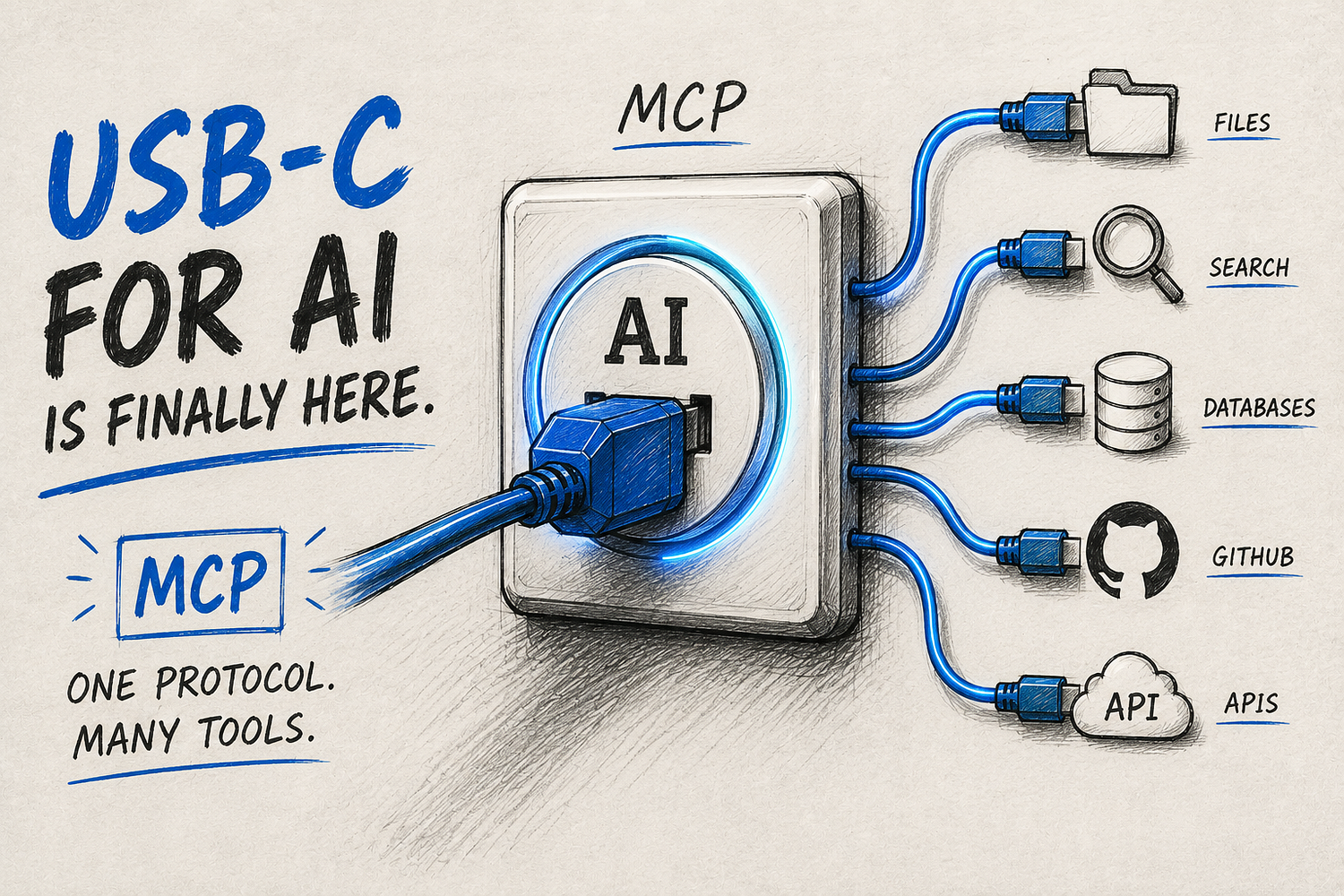
What MCP Actually Is
The short version: MCP is an open standard that lets AI assistants connect to external tools and data sources in a standardized way. Anthropic released it in November 2024, and by early 2026 it had crossed 97 million monthly SDK downloads and over 81,000 GitHub stars. OpenAI, Google, and Microsoft all support it now. It became the default way AI tools talk to external systems, fast.
Before MCP, if you wanted Claude to access your GitHub repo, someone had to write a custom wrapper just for that. Then another wrapper for Notion. And another for your database. Each one was its own thing — different format, different behavior, totally fragile. MCP fixes this by saying: here’s one standard way to expose tools and data, and any AI client that speaks MCP can use it. You build the server once, and it works in Claude Desktop, Cursor, VS Code, whatever.
People keep calling it “the USB-C of AI.” I thought that was a bit much when I first heard it. After actually using it, I think it’s fair.
The basic idea is this: there are three pieces. A host app — like Claude Desktop or Cursor. A client that lives inside that app and manages connections. And the MCP server itself, which is what actually does the work. The server exposes tools (things the AI can call and run), resources (data it can read), and sometimes pre-built prompts. The host talks to the server over a standard protocol, and the AI figures out when to use which tool.
The Two Types of MCP Servers (and Why It Matters)
This confused me for a while so let me clear it up early.
There are local servers and remote servers. Local servers run on your own machine. You install them as an npm package or a Python package, and they communicate over something called stdio — basically just reading and writing to standard input/output. Remote servers live somewhere on the internet, and you connect to them by pasting a URL. Claude Desktop added a “Connectors” section in early 2026 that makes remote servers much easier to add — no config file at all, just paste the URL and sign in.
For most people starting out, local servers are more useful but more annoying to set up. Remote servers are easier but you’re trusting whoever hosts them with whatever access you give them. I use both. The filesystem server I use is local because I don’t want my files going anywhere. The Brave Search server I use is remote because it’s just web search and the setup is three seconds.
A 2025 analysis of about 8,000 MCP servers found around 55% are JavaScript-based and 38% are Python-based. So if you’re setting up a local one, you’ll almost always need either Node.js or Python on your machine. Make sure these are installed before you do anything else — that’s a step most guides skip, and it’s the second most common reason things break.
Setting Up Your First MCP Server in Claude Desktop
Let me walk through this for Claude Desktop on macOS, because that’s what I use. Windows is almost the same — just a different config file path.
The config file is at ~/Library/Application Support/Claude/claude_desktop_config.json. You can also get to it from inside Claude Desktop by going to Settings → Developer → Edit Config. That shortcut creates the file if it doesn't exist already, which is useful.
Open that file. If it’s empty or doesn’t exist, start with this:
{
  "mcpServers": {
    "brave-search": {
      "command": "npx",
      "args": ["-y", "@modelcontextprotocol/server-brave-search"],
      "env": {
        "BRAVE_API_KEY": "your-api-key-here"
      }
    }
  }
}
Brave Search is a good first server to try because it’s low risk, the setup is straightforward, and you can immediately test if it’s working by asking Claude “what happened in the news today.” You’ll need a free API key from Brave’s developer portal — it takes maybe two minutes.
Save the file, then fully quit and reopen Claude Desktop. Not just close the window — fully quit it. This tripped me up the first three times. Tab-close and reopen doesn’t work. The app needs to restart to reload the config.
If the server is working, you’ll see a small tools icon in the Claude chat interface. Click it and you should see the tools that server exposes listed there.
The Mistakes That Will Waste Your Time
Okay so this is the part I wish someone had told me before I started.
Trailing commas in JSON. This is the number one issue. JSON doesn’t allow trailing commas. The last item in any object or array cannot have a comma after it. Sounds basic, but when you’re staring at a config file at 11pm trying to add a third server, you add a comma and forget to remove it, and then the whole thing silently fails. Validate your JSON at jsonlint.com before restarting the app. Takes five seconds, saves a lot of frustration.
The second issue is PATH. GUI apps like Claude Desktop and Cursor don’t inherit the same PATH your terminal does. So even if npx works perfectly when you type it in Terminal, the app might not be able to find it. The fix is to use absolute paths in your config instead of just npx. Run which npx in your terminal to get the full path, then use that. Mine is /opt/homebrew/bin/npx on Apple Silicon. So the config becomes:
"command": "/opt/homebrew/bin/npx"Third: if you’re getting an error -32000, that almost always means the server started but crashed before it could properly connect. This happens a lot with Python-based servers when the virtual environment isn’t activated, or with Node servers when npm install wasn't actually run in the server directory. Run the server command manually in your terminal first. If it crashes there, you'll see the actual error message. The AI client hides it.
And the fourth one — this one is weird — some servers print debug messages to stdout instead of stderr. That breaks everything because MCP uses stdout exclusively for the JSON-RPC messages that the protocol runs on. If a server is spitting extra text into stdout, the whole message stream gets corrupted. There’s not much you can do about this from the user side except look for a newer version of the server or check if there’s a config option to disable debug output.
What You Can Actually Do With MCP Servers
Let me be specific because “connect your AI to tools” is too vague to mean anything.
The filesystem server lets Claude read files from directories you specify. So you can drop a PDF into a folder and just ask Claude to summarize it — no copy-pasting. Or point it at your notes folder and ask “what were all the tasks I wrote down last week.” It won’t touch anything outside the directories you list in the config, which is good.
The GitHub MCP server is the one that people in developer communities are most excited about right now. You can ask Claude to find open issues, check PR status, or search code across your repos. A developer I know at a startup in Bangalore switched their team to this setup in March and said it cut the time they spent context-switching between their editor and GitHub by a lot — I don’t remember the exact number he said, but it was something like half their usual context-switch time.
The Supabase MCP server (about 2,556 GitHub stars as of this writing) lets Claude query your database directly. You describe what you want in plain language and it figures out the SQL. I’ve used this for quick data checks where writing a query manually would take longer than the actual answer is worth. It’s not magic — sometimes the query it generates is wrong and you have to fix it — but for simple lookups it’s fast.
You can chain these. With filesystem + Brave Search + GitHub all running, you can ask something like “compare these three open-source tools, check their GitHub stars, and save a summary to my notes folder.” Claude figures out which server to call and in what order. That part is actually where MCP gets interesting — it’s not just one tool, it’s the AI orchestrating multiple tools to complete a task.
There are over 5,000 MCP servers available now. Most of them are janky side projects that haven’t been touched in months. But a good chunk are genuinely well-maintained and useful — things like the HubSpot MCP server for CRM data, Notion, Slack, and various database connectors. MCPFind.org has a decent directory if you want to browse. I spent probably three hours one evening going through that site trying things, which is either a fun rabbit hole or a colossal waste of time depending on how you look at it.
One thing I kept running into: a lot of servers that sound amazing in the README don’t actually work out of the box. Either the documentation is outdated, or there’s a version mismatch, or the server needs a specific Node.js version that isn’t the one you have. Node 20 is the safe bet for most JavaScript-based servers right now. If you’re running Node 18, some things will break without a useful error message. Just update to 20 and save yourself the headache.
The HubSpot server is worth mentioning separately because it’s a good example of what this whole thing is actually for. If your team uses HubSpot as a CRM, connecting it to Claude means you can ask “what’s the status on all deals with companies in the manufacturing sector” and get an actual answer without opening HubSpot. For sales teams that spend their whole day context-switching between tools, this is where MCP stops being a developer toy and starts being practically useful for non-technical people too — as long as someone sets it up for them first.
Adding Servers to Cursor
If you use Cursor for coding, the setup is basically the same config format but the file location is different. Create a .cursor/mcp.json file in your project root. Same JSON structure, same mcpServers key. Cursor 0.45 and newer support this — if you're on an older version, update first.
The nice thing about Cursor’s MCP support is that it works in Agent mode specifically. So when you’re in Cursor’s agent mode and you ask it to do something that needs external data — like “find the latest version of this package and update my package.json” — it can call the npm or GitHub MCP server automatically, without you having to copy-paste anything. The agent decides when to use which tool. This is different from just having Claude answer a question; the tool use happens as part of a coding workflow.
One thing worth knowing: Cursor loads all MCP tool definitions upfront when it starts a session. If you have more than around 10 servers loaded, this starts adding noticeable overhead to every request because all those tool descriptions get pushed into the context. There’s a lazy loading option coming but as of June 2026 it’s not in the stable channel yet. So keep your active servers list lean, at least for now.
The same server package works in both Claude Desktop and Cursor. If you set up Brave Search for Claude Desktop and it’s working, you can add the exact same config block to your Cursor file and it’ll work there too. That’s kind of the whole point of having a standard protocol.
A Quick Note on Security
This is something I didn’t think about at all when I first started, and I probably should have.
MCP servers run on your machine with your permissions. If you install a server that has filesystem write access, it can write files. If it has shell access, it can run commands. Two-thirds of MCP servers scanned in early 2026 had at least some security issue — that number comes from a Toolradar security analysis published in March 2026. Even Anthropic’s own MCP Inspector tool had a critical vulnerability (CVE-2025–49596) that allowed remote code execution. It’s been patched, but the point stands: this ecosystem is young and not everything has been thoroughly reviewed.
The practical advice: only install servers from sources you can verify. For anything you find on GitHub, read the source or at least check how many people are using it and whether there have been recent commits. Don’t give a random server write access to your home folder. Start with the official servers from Anthropic’s GitHub repo — @modelcontextprotocol/server-brave-search, @modelcontextprotocol/server-filesystem, those ones — before you start installing things from lesser-known authors.
Remote servers hosted by someone else have a different risk profile. You’re not running code on your machine, but you’re sending your queries to their server. For general web search that’s probably fine. For anything involving personal files or credentials, maybe think twice.
Where Things Are Heading
The MCP roadmap for late 2026 includes something called automatic discovery through “Server Cards” — basically a way for AI clients to find and connect to servers without you having to manually edit config files. There’s also more work happening on agent-to-agent coordination, where one AI can hand off tasks to another AI through MCP. That’s still pretty early but it’s the direction things are going.
For now, the most practical thing you can do is pick two or three servers that solve actual problems in your workflow and get those working. Don’t try to set up ten things at once — start small, make sure each one actually works and is actually useful, then add more. The config file gets messy fast if you just throw everything at it.
MCP is one of those things that took me a week of on-and-off effort to get working properly. But once it clicked — once I had Claude reading my local files and searching the web and checking GitHub all in the same conversation — it felt like a different class of tool. Worth the setup time, at least for me. Your experience might vary depending on how patient you are with JSON syntax errors.