People talk about “local AI” like it is some complicated thing only developers can do. It is not. If you have a gaming PC or a reasonably recent desktop with a decent graphics card, you can run a full AI assistant on your machine right now, with no subscription, no API key, and nothing leaving your computer. I have been doing this for a while and this guide is basically what I wish someone had handed me when I started.
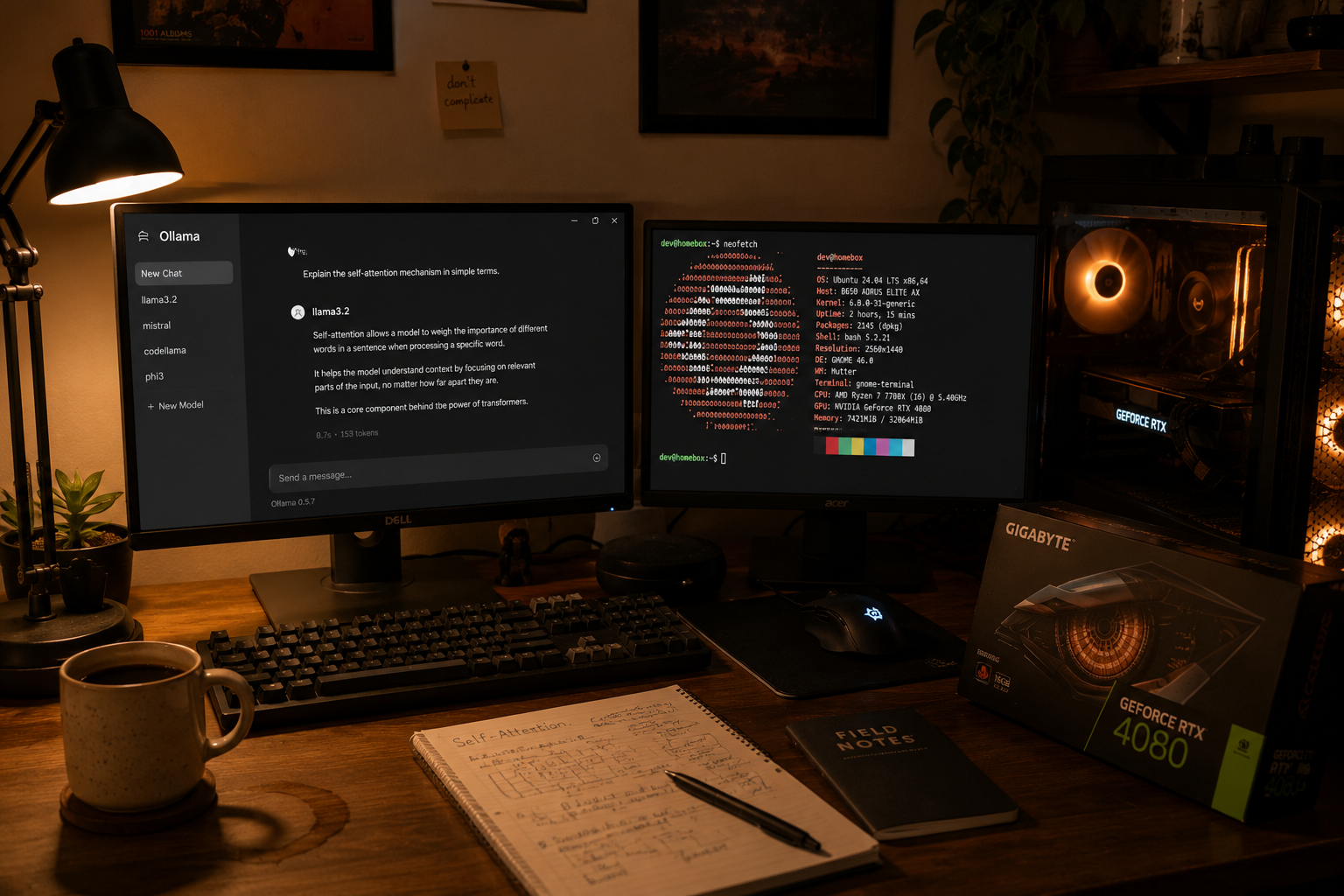
So let me walk through the whole thing. What VRAM is, why it matters, what the different model families are, what to pick based on what you want to do, and how to actually get it running.
First, What Is VRAM and Why Does It Keep Coming Up
Your graphics card has its own memory, separate from your computer’s regular RAM. It is called VRAM, short for Video RAM. When you run an AI model locally, the entire model has to be loaded into this memory before it can do anything. That is the fundamental constraint. If the model does not fit in your VRAM, either it will not run at all, or it will partially spill into your regular RAM and become so slow it is basically unusable.
Think of it like this. Your GPU is a kitchen. VRAM is the counter space. A model is all the ingredients and tools you need to cook a meal. If everything fits on the counter, you can cook fast and well. If things start falling off onto the floor, you spend most of your time picking them up.
Most gaming GPUs sold in the last few years come with 8GB, 12GB, or 16GB of VRAM. The RTX 3060 12GB, RTX 4070, RTX 4070 Ti are all 12GB cards. The RTX 4060 Ti 16GB, RTX 4080, RTX 5060 Ti (just came out in May 2026) are 16GB. If you have one of these, you are in a good spot for local AI.
What Are Parameters, and What Do “7B” and “14B” Mean
You see these numbers everywhere when people talk about AI models. 7B means 7 billion parameters. 14B means 14 billion. Parameters are basically the numbers inside the model that determine how it responds to things. More parameters, generally, means the model can handle more complex thinking.
But here is the catch: bigger models need more VRAM to fit. A 7B model needs roughly 5–6GB of VRAM. A 14B model needs around 9–10GB. A 24B model needs about 13–14GB. So with a 12GB card, you are working mostly in the 7B-14B range. With 16GB, you can comfortably go up to 24B models, which are noticeably better for harder tasks.
The relationship is not perfectly linear, which is why quantization exists.
Quantization: How You Fit a Big Model in a Small Space
This is the thing most guides throw numbers at without explaining. Quantization is a compression technique. Instead of storing each parameter at full precision (which takes more space), you round it down to a smaller number of bits. Q4_K_M means 4-bit quantization with some extra tricks to preserve quality. Q8 means 8-bit.
The practical result: a 7B model at Q4_K_M takes about 5GB of VRAM instead of 14GB. You lose some quality but not as much as you might think. Think of it like audio compression. A 320kbps MP3 and a lossless FLAC file sound different if you are wearing studio headphones in a quiet room, but through phone speakers, basically the same. Q4_K_M is the 320kbps MP3 of AI models. Good enough for almost everything.
Q4_K_M is the starting point most people should use. Q5_K_M is better if you have the headroom. Q8 is near-lossless but eats VRAM fast. Q3 and below start causing real quality problems, especially on longer or more complex tasks. I tried a Q3 version of a 14B model once and it started contradicting itself mid-paragraph. Not worth it.
How to Actually Run a Model: Ollama and LM Studio
There are two main tools people use and both are free.
Ollama works through a terminal. You install it, type a command like ollama run llama4-scout, and it downloads and starts the model. It is probably three commands from zero to a working AI chat. Ollama also runs a local API at port 11434 which means you can connect it to tools like VS Code extensions for coding assistance.
LM Studio is the same thing with a graphical interface. You open it, search for a model in the built-in browser, click download, and start chatting in something that looks like ChatGPT. It shows you live VRAM usage, temperature, tokens per second. Good for beginners who want to see what is happening. I actually recommend this if you are just starting out because it makes the whole VRAM situation visible and less mysterious.
Both tools support the same models. Pick whichever one feels more comfortable.
The Model Families (And What They Are Good At)
There are a few main families of models you will see. Understanding what each one is good at saves you from downloading three things and getting confused.
Llama (from Meta) is probably the most well-known. Llama 4 Scout, which came out in early 2026, is a big deal because it uses a MoE architecture. That stands for Mixture-of-Experts. The model has 109 billion parameters total, but only 17 billion of them are active at any time. So it runs like a 17B model in terms of speed and VRAM, but thinks more like something much larger. The result is that it fits on a 12GB card at Q4 quantization while punching well above its size on complex tasks. It also has a 10 million token context window, which basically means it can read extremely long documents without forgetting the beginning.
Qwen (from Alibaba) is the family I reach for most often for multilingual tasks and document work. Qwen3 8B is the best small coding model in the 7–8B class right now based on HumanEval benchmarks. Qwen3 14B sits comfortably in 12GB VRAM and runs at around 61 tokens per second, which is fast enough for comfortable interactive use. One thing Qwen is genuinely better at than the competition: Indian languages. Hindi, Tamil, Bengali translations and Q&A are noticeably cleaner with Qwen than with Llama or Mistral, which are mostly English-optimized.
Mistral (from a French AI company) makes models that are fast and tight on instruction following. Mistral Small 3.1 24B is the one most people with 16GB cards should know about. It sits at around 13–14GB VRAM usage, runs at 55 tokens per second on a 4080, and also has built-in vision support, meaning you can feed it images and ask questions about them. For a 16GB card, it is the best all-rounder available right now.
Gemma (from Google) is newer and worth knowing about for vision tasks. Gemma 4 E4B came out in April 2026 and fits in about 6–7GB VRAM, which leaves a lot of headroom even on a 12GB card. It is not the strongest model for pure text tasks but it handles image understanding well for its size.
Phi (from Microsoft) makes very small but surprisingly capable models. Phi-4-mini at 3.8B parameters needs barely any VRAM and scores well on reasoning and math benchmarks relative to its size. It is useful if you want something extremely fast, or if you are on a machine with only 8GB of VRAM. The downside is it loses focus on longer conversations.
What to Run Based on What You Want to Do
Now the practical part. Based on what you are actually trying to do, here is what I would recommend.
General chatting and Q&A: On 12GB, use Llama 4 Scout or Qwen3 14B. Both are responsive and handle most questions well. Llama 3.3 8B is also solid and faster if you want something snappier for simple tasks. On 16GB, Mistral Small 3.1 24B is the best general assistant at this VRAM level.
Coding help: On 12GB, Qwen3 8B at Q5_K_M is the strongest small coding model available right now. It handles Python, JavaScript, and basic debugging reliably. For bigger coding tasks where you need to pass in a large codebase or multiple files, Llama 4 Scout is better because of its much larger context window. On 16GB, Mistral Small 3.1 24B handles multi-file work cleanly. If you want something specifically built for agentic coding, meaning a model that can actually navigate a whole repository and make changes across files, Devstral Small 24B from Mistral is worth looking at, though it pushes the limits of 16GB.
Writing help, drafts, emails: No local model at 12–16GB will fully match GPT-4o for polished long-form writing. That is just honest. But for drafts you plan to edit, rewriting existing text, or helping with emails, Mistral Small 3.1 24B on 16GB does a decent job. On 12GB, Llama 3.3 8B works for shorter pieces, especially with a clear system prompt telling it not to pad things out with filler.
Summarizing documents and PDFs: Context window is everything here. You need a model that can hold a long document in memory without cutting off halfway and pretending it read the whole thing. On 12GB, Llama 4 Scout is the best choice because of its large context window. On 16GB, Qwen3 14B handles document extraction well, especially if you are asking it to pull specific information from contracts, reports, or anything with structured content.
Translation: On 12GB, Qwen3 8B is the pick, especially for CJK languages (Chinese, Japanese, Korean) and South Asian languages. Llama 3.3 8B is fine for European languages. On 16GB, Qwen3 14B with its 29 native supported languages is the clear choice. Local models are good at getting the meaning right but struggle with cultural references and humor in translation. That part still needs human review.
Looking at images, charts, UI screenshots: On 12GB, Gemma 4 E4B handles basic image Q&A. On 16GB, Mistral Small 3.1 24B has built-in vision support that is genuinely useful for reading charts, understanding diagrams, and describing what is in a screenshot. Llama 4 Scout also has multimodal support at the 12GB tier.
Things That Do Not Work (Save Yourself Some Time)
Mixtral 8x7B. People still recommend this in old forum posts. It does not run well on a single consumer GPU because its MoE architecture does not compress cleanly. A 13B dense model at Q4 will give you better output than Mixtral on consumer hardware. Skip it.
Llama 4 Maverick is tempting because it sounds like a 17B model (that is the active parameter count). But it has 400 billion total parameters and they all need to live in memory. It needs 24GB or more. On 16GB you will end up CPU offloading and it becomes painfully slow.
Q3 quantization on anything. It technically fits, but quality drops enough on complex tasks that you would have been better off with a smaller, cleaner model. A 7B at Q5 beats a 13B at Q3 on most real-world tasks.
If You Are Just Starting Out
My actual suggestion for most people: install LM Studio first. Download Qwen3 14B at Q4_K_M. Have a few conversations. See how it feels. If it is too slow, try Llama 3.3 8B. If you want something specifically for coding, try Qwen3 8B with a system prompt that says it is a coding assistant.
Once you are comfortable and have a sense of what you need, you can explore the Ollama ecosystem for more control, or start experimenting with other model families.
The whole space changed fast in the first half of 2026. Llama 4 Scout in May running on a 12GB card at quality that would have needed 24GB six months ago, that is a real shift. The gap between running locally and paying for a cloud API has never been smaller for everyday tasks like coding, Q&A, and document work. Privacy and zero API costs are the obvious wins. The main thing you still give up is raw quality on creative writing and multi-step reasoning compared to the frontier cloud models. That gap is real but shrinking.