GitHub Copilot costs $10 to $19 per month. Every. Single. Month. And while that doesn’t sound crazy at first, just do the math after a year — that’s $120 to $228, gone. And your code? It’s going to Microsoft’s servers. Your proprietary functions, your client’s business logic, that API key you accidentally left in a comment — all of it.

I switched to a local coding AI setup around 3 months ago and honestly I should have done it sooner. Not because the local models are always better — they’re not — but because the tradeoffs are very much in my favor for most of what I do day to day.
This article covers the best models to run locally right now, what hardware you actually need, how to connect it to VS Code so it works like Copilot, and a setup guide that even your non-developer friend could probably follow.
Why Developers Are Moving Away from Cloud Coding AI
The privacy thing is real, and it’s not paranoia. If you’re working on client code, or any codebase that has business logic your clients paid you to build, sending it to a cloud model is a problem. Most Copilot terms of service say they don’t train on your code anymore, but “don’t train on” doesn’t mean “doesn’t store temporarily.” I’m not going to pretend I fully understand what happens to my code after it hits their servers, and that uncertainty itself is a reason to avoid it.
Cost is the other thing. $19/month is the Copilot Business plan. Over three years that’s over $680. A one-time GPU upgrade that lets you run fast local models? That’s a better deal by year two.
Speed is something people don’t expect. A 7B model running on a machine with 32GB of RAM will often respond faster than Copilot, because there’s no network round trip. The latency that Copilot has — even on a good connection — adds up when you’re doing quick autocomplete in a tight coding session. Local feels snappier once the model is loaded into memory.
And then there’s customization. With local models you can pick any model, switch between them, run a smaller one when you want fast completions and a bigger one when you need actual reasoning. You’re not stuck with whatever OpenAI or Microsoft decided to give you this quarter.
What You Can Actually Do with a Local Coding AI
So what does this thing actually help with? Quite a lot, it turns out.
The obvious one is code completion — start typing a function and it finishes it. This works well in VS Code with the right extension (more on that below). Beyond that, you can paste a function and ask what it does, which is something I use a lot when I inherit someone else’s code and have no idea what’s happening. Debugging help is decent too, especially for Python and JavaScript. You paste the error plus the relevant code, and it usually at least points you in the right direction.
Writing tests is something I’ve found surprisingly useful. I paste a class, ask for unit tests covering edge cases, and get a solid starting point. Not perfect — I always have to edit — but a solid starting point is honestly all I need.
Refactoring suggestions, README generation, translating code from one language to another (Python to JavaScript comes up more than you’d think), and shell command generation are all in there. That last one is basically “how do I find all files modified in the last 7 days and copy them somewhere” and the model just gives you the command.
Hardware — This Part Actually Matters
Coding AI is more sensitive to speed than most other local AI tasks. If your model produces 4 tokens per second, autocomplete feels painful. You want at least 15–20 tokens per second for a smooth experience.
The minimum I’d suggest is 16GB of RAM with a modern CPU — an Intel 12th gen or newer, or an AMD Ryzen 5000 series. This gets you 7B models at usable speeds. Not fast, but usable.
32GB RAM is where things get comfortable. You can run 13B models at decent speed, or a quantized 14B model like Qwen2.5-Coder without wanting to throw your laptop out a window.
Apple Silicon is kind of its own category. A Mac Mini M4 with 16GB unified memory is, I think, the best value setup for local AI right now. The unified memory architecture means the GPU and CPU share the same pool, so a 7B model loads fast and runs fast. I have a friend at a small startup in Hyderabad who switched their dev team to M4 Mac Minis specifically for local AI, and they said build-time AI usage went up immediately just because it stopped being annoying.
If you have a discrete GPU — an RTX 4060 with 8GB VRAM or better — that changes things a lot. Models that fit in VRAM run dramatically faster than models running on CPU RAM. An RTX 4070 with 12GB VRAM can run a quantized 14B model fully in GPU memory and produce tokens fast enough that you forget it’s running locally.
Best Coding Models to Run Locally in 2026
Let me go through the ones that actually work well right now, as of early 2026.
Qwen2.5-Coder 7B is the model I’d tell most people to start with. It’s small enough to run fast on almost any modern machine with 16GB RAM, and its coding quality is genuinely good — not “good for a small model” but just good. It handles Python, JavaScript, TypeScript, Go, and SQL well. Pull it in Ollama with ollama pull qwen2.5-coder:7b and you're running in minutes. I've been using this one for quick autocomplete and it rarely embarrasses me.
DeepSeek-Coder-V2 in its quantized form is a step up in quality. The full model is too big for most machines, but the Q4 or Q5 quantized versions run on 32GB RAM at acceptable speed. I spent probably two weeks trying to get this one working before I realized I was pulling the wrong variant — the documentation for this is not great, to be honest. Once I got it right, the quality for things like writing complex SQL queries and multi-file refactoring was noticeably better than the 7B options.
Llama 3.3 70B is the “if your hardware allows it” option. A quantized version — Q4_K_M specifically — needs around 40–48GB RAM or a beefy GPU setup. If you have that, the coding quality approaches what you’d get from paid services. It’s slow on CPU-only setups, so this one is really for people with a proper GPU or a machine with 64GB RAM.
CodeGemma from Google is a lightweight option that’s optimized specifically for fill-in-the-middle autocomplete. If all you care about is fast inline suggestions and not chat-style code help, this one is worth trying. It’s small and fast.
The tradeoff is basically:
smaller model = faster but dumber,
bigger model = smarter but slower.
Pick based on your hardware. Starting with Qwen2.5-Coder 7B and upgrading later is the sensible approach.
Editor Integration — Making It Feel Like Copilot
This is where the setup either clicks or it doesn’t. The raw Ollama interface is fine for chatting, but for actual coding you want inline completions inside your editor.
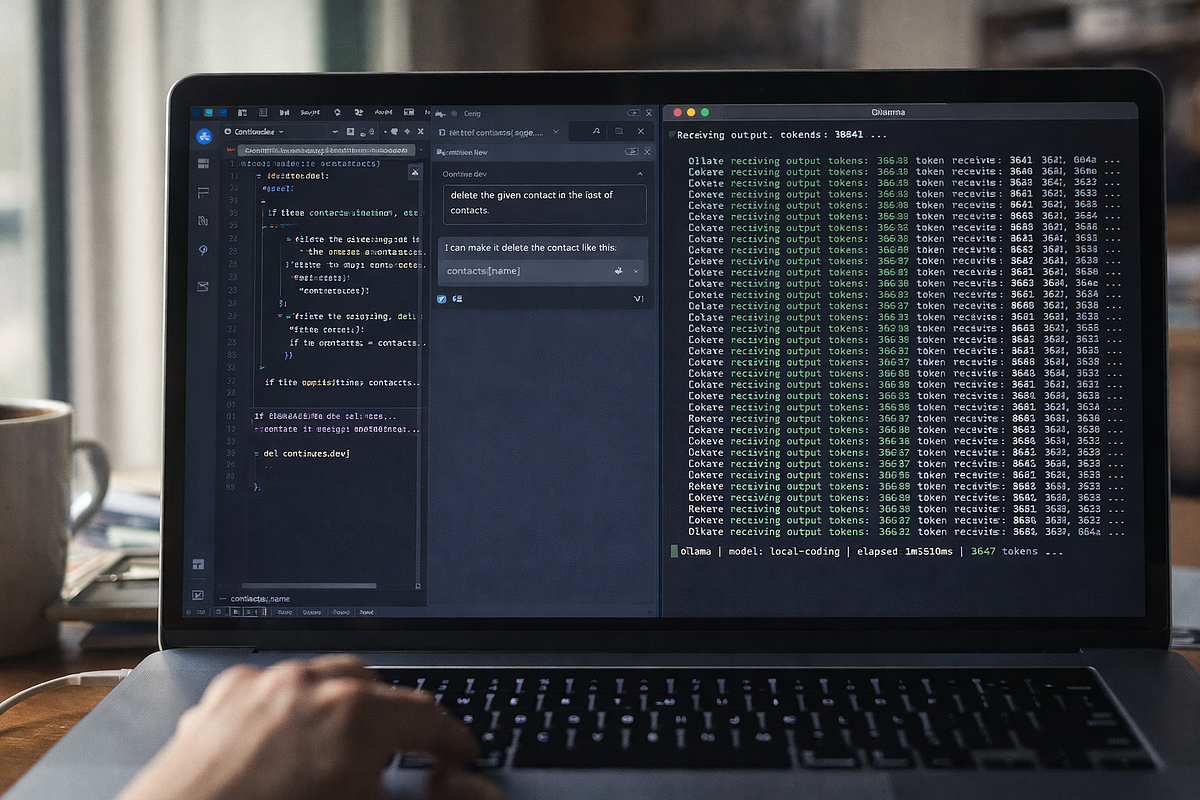
Continue.dev is the extension I use and recommend. It works in both VS Code and JetBrains IDEs, it connects to Ollama directly, and it gives you autocomplete plus a chat sidebar — basically the Copilot experience but pointed at your local model. The GitHub repo has over 20,000 stars as of last month, so it’s not some abandoned project.
Twinny is a lighter alternative for VS Code that focuses mostly on autocomplete rather than chat. Simpler to configure, fewer features. If you just want the tab-completion part and don’t care about the chat window, Twinny is actually a bit less fiddly to set up.
For longer coding tasks — reviewing a whole file, generating a module from scratch, or asking complicated questions — I usually just use Open WebUI, which is a browser interface for Ollama. You paste your code there and have a proper conversation about it.
Here’s a minimal config.json for Continue.dev pointing to Ollama:
{
  "models": [
    {
      "title": "Qwen2.5-Coder",
      "provider": "ollama",
      "model": "qwen2.5-coder:7b",
      "apiBase": "http://localhost:PORT_NO"
    }
  ],
  "tabAutocompleteModel": {
    "title": "Qwen2.5-Coder Autocomplete",
    "provider": "ollama",
    "model": "qwen2.5-coder:7b"
  }
}
This is the actual config I started with. Nothing fancy. You can add more models later.
Setup Guide — From Zero to Running in Under 30 Minutes
This is the step-by-step. I’m assuming you have VS Code installed and are on Windows, Mac, or Linux.
Step 1 — Install Ollama
Go to ollama.com and download the installer for your OS. Run it. That’s the whole step. Ollama starts a local server at localhost:11434 automatically.
Step 2 — Pull a coding model
Open a terminal and run:
ollama pull qwen2.5-coder:7bThis downloads about 4–5GB. Get a coffee.
Step 3 — Install Continue.dev in VS Code
Open VS Code, go to Extensions (Ctrl+Shift+X), search for “Continue,” install the one from continue.dev. It’ll ask you to set up a model on first run.
Step 4 — Configure Continue.dev to use Ollama
Click the Continue icon in the sidebar. Go to Settings → Models → Add Model → select Ollama → pick qwen2.5-coder:7b. It auto-detects localhost:11434. If it doesn't, you can manually paste the API base URL.
Step 5 — Test it
Open any code file. Start typing a function. Hit Tab when the grey suggestion appears. That’s your local Copilot working with zero data leaving your machine.
One thing that tripped me up: Continue.dev’s autocomplete doesn’t start working immediately on first install. You have to actually open a file in a supported language and wait a few seconds for the first suggestion. I thought it was broken for about 20 minutes before I figured this out. Just wait.
5 Prompts That Actually Help
These are prompts I use regularly. Paste them into Continue.dev’s chat, or Open WebUI, with your code attached.
“Review this function for bugs and suggest improvements: [paste code]” — good for a second opinion before committing.
“Write unit tests for this class covering edge cases: [paste class]” — gets you a starting draft fast.
“Explain what this code does, line by line, in plain English: [paste code]” — I use this when I inherit someone else’s nightmare.
“Refactor this function to be more readable and efficient: [paste code]” — works best with shorter functions, maybe 30–50 lines.
“Generate a README for this project based on the following code structure: [paste file tree and key files]” — this one saves maybe an hour of annoying work.
The models are honest about what they don’t know when you phrase things as specific tasks rather than vague questions. “Fix my code” gets worse results than “this function is returning undefined when the input array is empty, here’s the code.”
Is It Actually Worth the Switch?
Do the math. Copilot Individual is $10/month. Copilot Business is $19/month. Over 12 months that’s $120 to $228. Over two years, $240 to $456.
See I am not telling, Local LLms are better, they are not. But the only tradeoff we are talking here is the privacy, owing your own data and the freedom.
A decent machine that runs local coding AI well — say, adding 16GB of RAM to a machine that already has 16GB — costs maybe $60–80 for the RAM. A used RTX 3060 12GB GPU runs around $200–220 on OLX or Ebay similar in India right now.
You’re at break-even in less than a year on the hardware alone, and then you’re paying nothing after that.
The quality is not equal across the board. For complex multi-step reasoning or working with very large codebases, the cloud models still have an edge.
I’m not going to pretend otherwise. But for 80% of daily coding tasks — autocomplete, explaining code, writing tests, debugging — a local 7B or 14B model is completely fine.
And for freelancers handling client code that shouldn’t go anywhere near a cloud, there’s really no comparison.
Set it up once. It takes maybe 30 minutes. Then it just runs, every day, for free.