You spent yesterday wrestling with command-line queries and watching responses scroll past in the terminal. It works, yes, but something feels unfinished. You cannot bookmark a brilliant response. You cannot see your conversation history when the window closes. And asking your family to use the terminal to chat with AI is a non-starter.
Today, that changes.
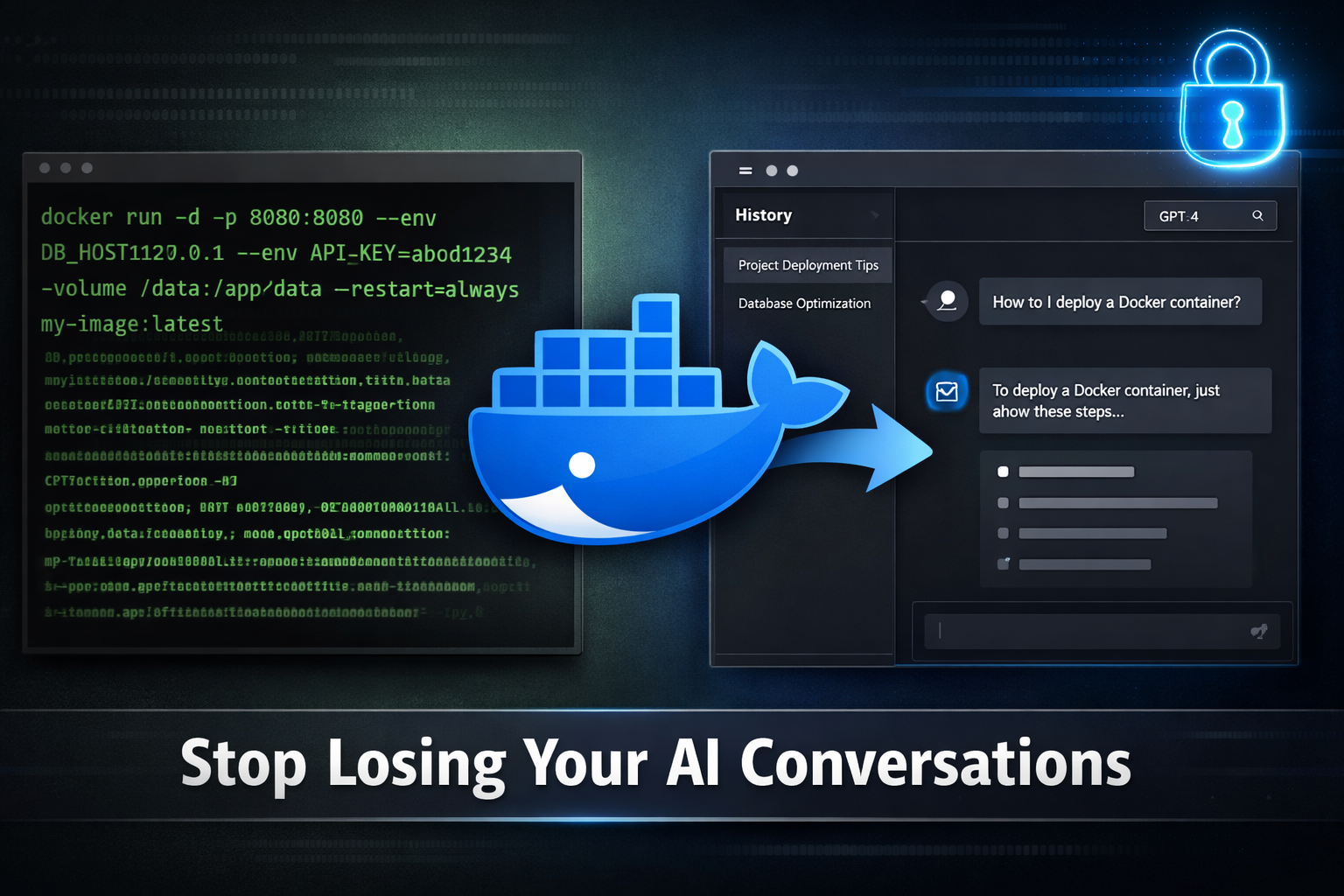
Open WebUI is not just a visual wrapper around Ollama. It is a complete, production-grade interface that transforms your local models into something that feels like a real product. Think ChatGPT, but running entirely on your hardware with zero cloud uploads. And the setup takes one Docker command.
Why Your CLI Days Are Numbered
The command-line Ollama interface excels at one thing: testing. It is direct, it is fast, and if you are debugging model behavior, it is invaluable. But it was never designed for conversations. Each session evaporates when you close the terminal. Your brilliant coding solution from three hours ago? Gone. Need to compare how two models respond to the same prompt? You are copy-pasting between terminal windows and text editors like it is 2005.
Open WebUI solves this with features that sound simple but change everything in practice.
You get persistent chat history. Every conversation saves automatically to a database. Start a chat about backend optimization, close the window, return a week later, and your entire conversation tree is there, ready to continue. That beats any cloud service because the data never leaves your machine.
You get a model selector. Instead of killing the terminal and running ollama run mistral, you pick a model from a dropdown. Switching between Llama 3, Mistral, Gemma, and your custom fine-tuned model takes one click. You can even compare model outputs side by side in separate tabs.
You get multi-user support. Your partner wants to use the AI without learning Linux commands? Create an account for them in the admin panel. Your team needs access? Add five more users. Each person gets their own conversation history, preferences, and system prompts. Open WebUI handles all the authentication and isolation.
And you get dark mode, code highlighting with copy buttons, Markdown rendering that actually works, file uploads for context, and the visual feedback that tells your brain this is a tool, not a terminal.
But the real magic is simpler than all of this. You get the same interface as ChatGPT, for zero dollars, with zero data leaving your network.
Before You Start: Your Checklist
One non-negotiable requirement: Docker must be running. If you skipped Days 4 and 6, go back and install Docker now. This tutorial assumes you have Docker already set up.
Second requirement: Ollama must be running. This is from Day 8. Start it with ollama serve in a terminal window, or use systemctl start ollama if you set it up as a service. Open WebUI will not work if Ollama is not listening on port 11434.
That is it. Everything else comes with the Docker image.
The Magic Spell: One Command, One Dashboard
Copy this command into your terminal and press Enter. Do not modify it yet. We will break down what it does next.
docker run -d -p 3000:8080 --add-host=host.docker.internal:host-gateway -v open-webui:/app/backend/data --name open-webui --restart always ghcr.io/open-webui/open-webui:mainThat is it. The container is starting now. In your browser, navigate to http://<your-server-ip>:3000 or http://localhost:3000 if you are running Docker on the same machine. If the page loads, you are done. If it is still loading, wait 30 seconds and refresh.
But let us understand what you just unleashed.
Decoding the Docker Flags
-d runs the container in detached mode. This means it runs in the background, and your terminal is free for other commands.
-p 3000:8080 publishes the web interface on port 3000. Open WebUI inside the container listens on port 8080, but you access it via 3000 on your host machine. This prevents conflicts with other services. If port 3000 is already in use on your system, change the first number to something free, like 3001:8080.
--add-host=host.docker.internal:host-gateway is the crucial flag that makes everything work. Docker containers are isolated from the host machine by default. Without this flag, Open WebUI cannot find your Ollama instance running on the host. This flag creates a special hostname that resolves to your host machine, allowing the container to say, "Talk to Ollama on host.docker.internal port 11434." Skip this flag and you will see an error message saying Ollama is not connected. Include it, and everything connects automatically.
-v open-webui:/app/backend/data creates a persistent volume. This is how your chat history survives container restarts and updates. Every conversation, user account, and system prompt saves to a Docker volume named open-webui. When you update Open WebUI next month, the container stops, a new one starts, and the volume reconnects. Your data never touches a temporary directory. It lives in Docker's managed storage, untouched and safe.
--name open-webui gives the container a human-readable name. Later, if you need to stop it, you can say docker stop open-webui instead of wrestling with container IDs.
--restart always ensures Open WebUI starts automatically when your system reboots. No more manual intervention. Your family wakes up, the AI is ready.
ghcr.io/open-webui/open-webui:main specifies the image. This pulls the latest stable release from GitHub Container Registry. If you want GPU acceleration with CUDA, change main to cuda. If you want both Ollama and Open WebUI in one container (no separate Ollama service), use ollama instead of main.
Your First Login: The Admin Ritual
Open your browser to http://localhost:3000. You will see a signup form. This is not creating a cloud account. This is creating the first administrator account on your local system. Think of it as the root password for your AI dashboard.
Fill in a username, a legitimate email address, and a strong password. This account has permission to create other users, modify system prompts, download models, and manage everything. Write it down if you need to. This is your only admin account unless you intentionally promote another user.
Click Create Account. The form vanishes, and you are dropped into the main chat interface.
Your New Playground: The Interface Tour
You are now looking at something that should feel familiar if you have used ChatGPT. On the left, a sidebar shows your conversation list. New conversations appear as you create them. Click on any past conversation, and your entire message history reappears with no delay.
At the top left of the chat area, you will see a dropdown menu labeled with a model name. This is your model selector. Click it. Ollama has already made all its models available to Open WebUI. You will see Llama 3, Mistral, Gemma, or whatever models you have pulled. Select one, and your next message goes to that model. Switch models mid-conversation if you want. Open WebUI keeps track.
The chat input box at the bottom behaves exactly like any chat interface. Type, press Enter, and your message flows to Ollama. Responses stream in real time, word by word, the same way they do in the CLI. But now the response is formatted, code blocks have copy buttons, and Markdown renders beautifully.
Customization Without Complexity
Setting a System Prompt
By default, models respond as general-purpose assistants. You want a coding buddy, a technical writer, or a code reviewer. System prompts define this behavior.
Click the settings icon (three horizontal lines or a gear, depending on your theme) at the top right. Under Models, select a model name. You will see a field labeled System Prompt. This text tells the model how to behave for all future conversations using that model.
Try this: paste a system prompt like, “You are an expert Python backend developer with 15 years of experience in Go and Golang. Explain concepts clearly but concisely, and always provide production-ready code examples.” or whatever you want the model to be perfect in.
Save. Create a new conversation. Your responses will shift immediately. The model knows its role.
Dark Mode and Visual Preferences
Look for the settings menu (usually top-right corner). Under Interface or Theme, toggle between Light and Dark modes. Dark mode is easier on the eyes during late-night debugging sessions. The setting saves automatically.
Model Management Without the Terminal
Want to download a new model? Instead of running ollama pull mistral, you can do it directly in Open WebUI.
In the settings, find Models or Model Management. You will see an option to add a new model. Paste a model name like mistral or neural-chat, and Open WebUI talks to Ollama in the background, pulling the model for you. No terminal required. Your non-technical family member can add models without touching the command line.
Similarly, if a model eats too much disk space and you want to delete it, delete it from the UI. Open WebUI handles the cleanup.
When Things Do Not Work: The Troubleshooting Checklist
Error: “Ollama Server Not Connected”
You see a red banner at the top saying Ollama is not reachable. First, verify Ollama is actually running. In a separate terminal, run:
ollama serveor
systemctl status ollamaIf Ollama is running, the problem is almost always the --add-host flag. If you copied the command exactly as written, it should be there. If you typed it manually and skipped that flag, the Docker container cannot reach the host. Stop the Open WebUI container and restart with the full command, including the flag.
To stop it:
docker stop open-webuiThen run the full command again.
Error: “Port 3000 is Already in Use”
Another service is listening on port 3000. Use a different port:
docker run -d -p 3001:8080 --add-host=host.docker.internal:host-gateway -v open-webui:/app/backend/data --name open-webui --restart always ghcr.io/open-webui/open-webui:mainNow access Open WebUI at http://localhost:3001. Docker will create a new container with the same volume, so your chat history is intact.
Model Downloads Are Slow
Ollama downloads models into its home directory. On the first pull, a 7B parameter model can take several minutes on a slow connection, and larger models take longer. This is normal. Open WebUI is not freezing. It is just downloading. You can check progress by running du -sh ~/.ollama/models in another terminal to watch the download grow.
First Login Keeps Redirecting to Signup
If you are using a browser that has cleared cookies, Open WebUI might forget you are logged in. Log out, clear your browser cache for localhost:3000, and log back in. Or use an incognito window to verify the issue is browser-specific.
The Real Upgrade: What You Can Do Now
You can have conversations that persist. You can review them next week without commands or export scripts.
You can run multiple models and compare their outputs without restarting anything. Debugging a complex problem becomes a conversation with multiple perspectives simultaneously.
You can invite your partner, a colleague, or your team member to use the same AI without them touching a terminal. You create an account, they log in, and they see a ChatGPT-like interface.
You can fine-tune system prompts per model and flip between specialized assistants — one for coding, one for writing, one for analysis.
Most importantly, you now have the infrastructure for everything that comes next. Document uploads, retrieval-augmented generation, custom tools, and integrations all build on top of this dashboard. Open WebUI is not the endpoint. It is the platform.
What is Next
You have a working AI dashboard. Tomorrow, we teach it to read. Open WebUI integrates with PrivateGPT, allowing you to upload PDF documents, research papers, and code repositories.
Your AI can search through them, answer questions grounded in your data, and synthesize information in seconds.
No cloud uploads. No data breaches. Just your documents, your models, and your network.
For now, open a terminal, run that command, and experience what local AI was meant to feel like.
Welcome to Day 9. Your personal AI has a face.